
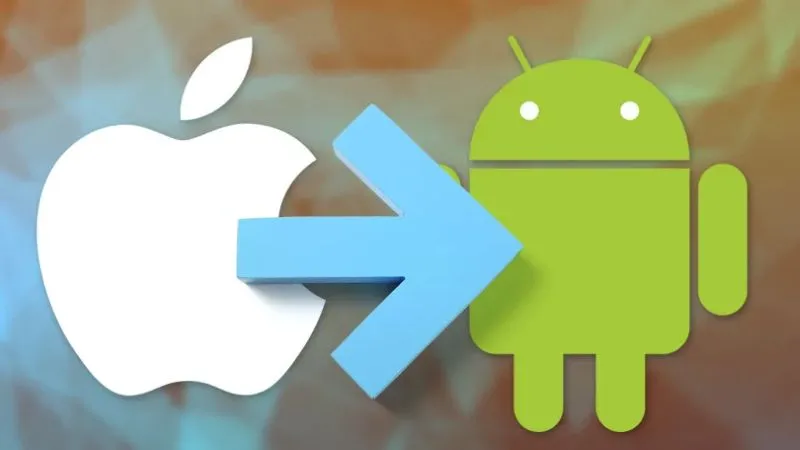
The decision to transition from one major smartphone ecosystem to another, particularly from Apple's iOS to Google's Android, is a significant one. While both platforms offer highly refined user experiences, their underlying philosophies, feature sets, and operational paradigms differ considerably. This guide aims to provide a comprehensive, professional overview of what an iPhone user should understand and prepare for when making the switch to an Android device, ensuring a smoother and more informed transition.
I. Understanding the Core Philosophical Differences
At its heart, the primary distinction between iOS and Android lies in their approach to user control and ecosystem integration.
iOS (Apple): The Curated Experience Apple's philosophy centers on a highly integrated, curated, and somewhat closed ecosystem. This approach results in a consistent user experience across devices, tighter security controls, and often simpler user interfaces. However, it also means less customization freedom and a more restrictive file system, with Apple dictating most aspects of how users interact with their devices and data.
Android (Google): The Open Canvas Android, by contrast, embraces openness, customization, and hardware diversity. It's an open-source operating system that allows manufacturers to heavily modify its interface, add proprietary features, and offer a vast range of devices across all price points. This flexibility empowers users with unparalleled customization options and a more accessible file system, though it can lead to a less uniform experience across different Android phones and potentially more varied software update schedules.
II. Pre-Switch Preparation: Laying the Groundwork
Before you even unbox your new Android phone, several critical steps should be taken to ensure your data is safe and your transition is seamless.
Backup Your Data: This is paramount. Ensure all your essential data – photos, videos, contacts, calendars, and documents – is backed up.
- iCloud: Verify your iCloud backup is up-to-date.
- Google Photos/Drive: Consider uploading photos and videos to Google Photos and other files to Google Drive while still on your iPhone. This will make migration to Android much simpler, as these services are native to Android.
- Contacts: Ensure your contacts are synced to a cloud service like iCloud or, ideally, Google Contacts. If they’re only stored locally, export them as a VCF file.
- Messages: Transferring iMessage history directly to Android is notoriously challenging due to encryption. Third-party tools exist but are not always reliable. Backing up crucial information or screenshots can be a workaround for key conversations.
Disable iMessage: This is a crucial step to avoid message delivery issues. If iMessage is not deactivated before removing your SIM card or activating your Android phone, messages sent from other iPhones to your number may continue to be routed as iMessages, meaning they won't reach your new Android device.
- Go to
Settings > Messagesand toggleiMessageoff. - Also, deregister your phone number from iMessage on Apple's website if you encounter issues.
- Go to
Review Your Apps: Not all iOS apps have Android equivalents, though most major applications do. Check the Google Play Store for your essential apps. Remember that app purchases made on the App Store do not transfer to the Google Play Store; you will need to repurchase them.
Transfer Your SIM Card: Once preparations are complete, you can transfer your physical SIM card to your new Android device, or set up an eSIM if your new device supports it and your carrier allows.
III. Key Differences and What to Expect
Embracing Android means adapting to several fundamental changes in how you interact with your smartphone.
User Interface and Navigation:
- The Back Button: Android features a dedicated "Back" function, either as a capacitive button, a software button in the navigation bar, or a gesture. This provides a consistent way to navigate backwards within apps or the system, a concept often handled differently within individual apps on iOS.
- Gesture Navigation: Both platforms offer gesture-based navigation, but they can feel distinct. Android's gestures typically involve swiping from the sides for "back" and swiping up for "home" or "recents."
- Notification Shade vs. Control Center: Android's notification shade is highly functional, often combining notifications with quick settings toggles in a single swipe-down motion. Its granular control over notification channels allows users to decide precisely which types of notifications an app can send. iOS separates these into Notification Center and Control Center.
- Widgets: Android widgets are significantly more powerful and integrated, allowing for interactive elements directly on your home screen, not just information displays. You can extensively customize your home screens with various widget sizes and functions.
Customization:
- Launchers: Android allows you to completely replace the home screen experience with third-party "launchers" like Nova Launcher or Lawnchair. These offer unparalleled control over icons, layouts, animations, and gestures.
- Icon Packs and Themes: You can download and apply entirely new icon packs and system-wide themes, drastically altering the aesthetic of your phone.
- Live Wallpapers: Android supports dynamic, animated live wallpapers, offering a more vibrant home screen experience.
File Management:
- Android offers a much more accessible file system. You can easily browse, move, copy, and manage files and folders directly on your device, similar to a computer. This includes downloading files from the web directly to specific folders and easily transferring files via USB. iOS, by contrast, restricts access to app-specific sandboxes, making direct file management less intuitive.
Hardware Diversity:
- Unlike Apple's limited range of iPhone models, Android devices come from numerous manufacturers (Samsung, Google, OnePlus, Xiaomi, etc.) and in a vast array of specifications, designs, and price points. This means you can find a device perfectly tailored to your budget and specific needs, whether it's an advanced camera system, a massive battery, or a cutting-edge foldable display.
App Ecosystem and Permissions:
- App Availability: Most popular apps are available on both platforms. However, certain niche apps might be exclusive to one.
- Permissions Model: Android's permission system is very granular. When an app requests access to your camera, microphone, location, etc., you can grant or deny it on a per-permission basis, and even choose to grant it "only while using the app." You also receive clear notifications when apps use sensitive permissions in the background.
Charging and Connectivity:
- The vast majority of modern Android phones utilize USB-C for charging and data transfer, a universal standard. If you're coming from an older iPhone, you'll be switching from Lightning. Newer iPhones have also adopted USB-C, so this may be less of a change for recent iPhone users.
Google Services Integration:
- As Android is a Google product, its services – Google Assistant, Google Maps, Google Photos, Gmail, Google Drive, YouTube, Chrome, etc. – are deeply integrated into the operating system. If you already use these services, the transition will feel incredibly natural. Google Assistant, in particular, is often considered more versatile than Siri for certain tasks.
IV. Data Migration: A Detailed Look
While some data is easier to transfer than others, a systematic approach minimizes loss.
Contacts and Calendar: If your contacts and calendar events are synced to iCloud, ensure they are also synced to your Google Account. Android integrates seamlessly with Google Accounts, making this the most straightforward migration path. Most Android phones will prompt you to sign in to your Google Account during initial setup, automatically syncing these services.
Photos and Videos:
- Google Photos: The best method is to fully back up your iPhone's photos and videos to Google Photos while still on iOS. Once on Android, signing into the same Google Account will make all your media instantly accessible.
- Cloud Services: Other cloud storage solutions like Dropbox or OneDrive also work universally.
- Manual Transfer: Connect your iPhone to a computer and manually copy photos/videos, then connect your Android and transfer them.
Messages (SMS/MMS Only):
- Third-party apps like "Move to Android" (from Google) or specific tools provided by phone manufacturers (e.g., Samsung Smart Switch) can sometimes assist with transferring SMS/MMS messages. However, success varies, and iMessages will not transfer.
Apps: You will need to re-download all your apps from the Google Play Store. Remember, paid apps on iOS will need to be purchased again on Android. Sign in to each app individually.
Passwords: If you use iCloud Keychain, you’ll need to transition your passwords. Consider a cross-platform password manager (e.g., LastPass, 1Password, Bitwarden) which can import from iCloud Keychain and then sync with your new Android device. Google Chrome's password manager can also be used if you sync your browser data.
V. Addressing Common Concerns
- Security: Android has made immense strides in security. While its open nature means more potential avenues for malware, Google Play Protect and robust permission controls offer strong defenses. Stick to official app stores and be mindful of app permissions.
- Learning Curve: While there's a learning curve, Android's core navigation and app usage are intuitive. The main adjustments will be to the location of settings, notification management, and embracing customization.
- "Green Bubbles" and iMessage: Be prepared for messages from iPhone users to appear in green bubbles, indicating SMS/MMS. While Apple has announced support for RCS in 2024, the iMessage ecosystem remains dominant for current iPhone users. This is a social and aesthetic change more than a functional one.
- Software Updates: Unlike iPhones, where Apple controls updates for all devices, Android updates are managed by Google and then rolled out by device manufacturers and carriers. This can lead to varying update schedules, with some devices receiving updates faster or for longer periods than others (Google Pixel devices generally receive updates earliest).
VI. Tips for a Smooth Transition
- Embrace Customization: Don't try to make your Android phone look or feel exactly like an iPhone. Explore launchers, widgets, and themes. This is where Android truly shines.
- Explore Google Services: Dive into Google Assistant, Google Lens, Google Discover (the news feed on the left of the home screen, on many launchers). These are powerful tools native to the Android experience.
- Take Your Time: It takes a few days to a few weeks to fully adjust. Don't get discouraged if things don't feel intuitive immediately.
- Utilize "Phone Clone" Apps: Many Android manufacturers offer their own "phone clone" or "smart switch" apps (e.g., Samsung Smart Switch, OnePlus Switch, Google's "Switch to Android" app) which can simplify data migration from an iPhone.
Switching from iPhone to Android is a journey of discovery into a world of unparalleled choice and flexibility. By understanding the fundamental differences, preparing meticulously for data migration, and embracing the new ecosystem with an open mind, you can ensure a smooth and rewarding transition to your new Android device.

Jim Pearse, a seasoned freelance writer, brings a wealth of knowledge and passion to the world of home and garden. From the intricacies of landscaping to the nuances of interior design, Jim delves into every aspect of creating comfortable, beautiful, and functional living spaces.
Related Posts
Unlocking the Untapped Business Potential of Your Smartphone Sensors
Explore how the hidden sensors in everyday smartphones—accelerometers, gyroscopes, barometers, and... Read More
Modular Magic: Reimagining Smartphones for a Sustainable Future
Modular smartphones let you swap out batteries, cameras, and more, turning your phone into a sustain... Read More
How to Locate a Lost iPhone, iPad, Apple Watch, and MacBook: A Comprehensive Guide to Finding Your Apple Devices
Losing an Apple device – whether it’s your indispensable iPhone, your versatile iPad, your trust... Read More
Top Posts

Best Carpet Cleaning Hacks That Work
Carpets bring warmth, comfort, and aesthetic appeal to any space, but their beauty can quickly diminish under the relentless assault of daily life. From acciden...Read More
TikTok for B2B: Turning 15‑Second Clips Into Revenue Engines
A practical guide from Dale Peterson on using TikTok’s fast‑moving platform to generate high‑quality B2B leads, complete with a 30‑day launch plan, real...Read More

The Dark Side of Gaming: How Online Gaming Affects Mental Health
Excessive online gaming can have negative effects on mental health, including anxiety, depression, and social isolation. Learn how to promote healthy gaming hab...Read More

Link Building as Relationship Building: A Human‑Centric Playbook
Discover how treating links as trust tokens and focusing on genuine collaborations can create sustainable authority, drive quality traffic, and protect your SEO...Read More
0 Comments
Post Comment
You will need to Login or Register to comment on this post!