
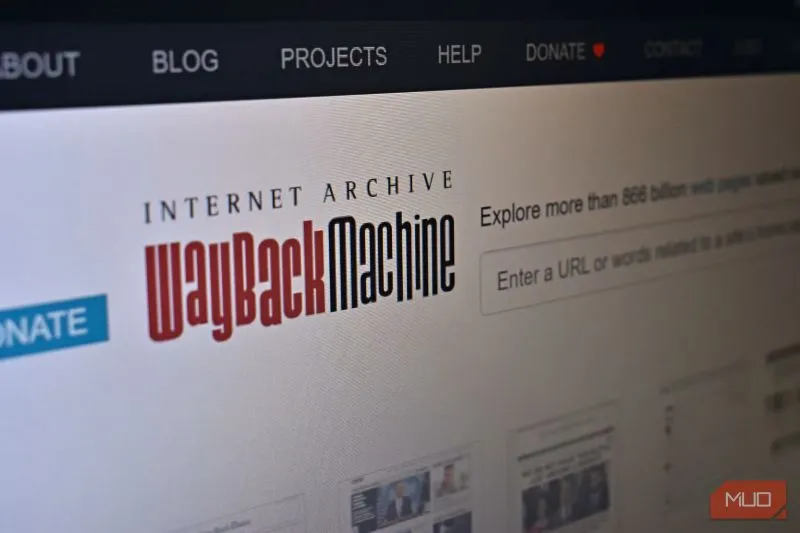
The Internet Archive’s Wayback Machine is a remarkable public repository that has captured billions of web pages since the mid‑1990s. For a site that has been lost, corrupted, or taken offline, the Wayback Machine can become a lifesaver, offering a snapshot of the original content, layout, and even some of the underlying code. Restoring a website from this archive, however, is not as simple as clicking a “restore” button. It demands a systematic approach that blends technical know‑how, careful planning, and an awareness of legal and ethical considerations. The following guide walks you through the entire process, from initial assessment to a fully functional, searchable site that mirrors the original as closely as possible.
1. Clarify the Restoration Goal
Before you open a browser tab to the archive, ask yourself what you truly need to achieve.
- Full reconstruction – You want a replica that behaves exactly like the original, preserving navigation, assets, and server‑side logic.
- Content recovery – Only text, images, and downloadable files are required; the original design may be replaced.
- Partial rescue – Certain sections or time periods are missing, and you need to fill gaps with alternative sources.
Defining the objective influences how deep you will go into the archive, which tools you’ll need, and how much post‑processing will be required.
2. Locate the Desired Snapshots
The Wayback Machine stores multiple captures for each URL, often spanning many years. Follow these steps to pick the most suitable version:
- Enter the target URL in the Wayback Machine search bar.
- Examine the timeline displayed at the top of the results page. Bars represent years with denser shading for more captures.
- Hover over the calendar to view exact timestamps. Choose a date that reflects the site’s most complete state—typically a date shortly before the site disappeared or before a major redesign.
- Open the snapshot in a new tab and verify that the main navigation, core pages, and media load correctly. If the snapshot is fragmented, repeat the process for adjacent dates until you assemble a comprehensive set.
Remember that the archive often stores only the HTML and linked resources that were publicly reachable at the time of capture. Server‑side scripts, databases, and private files are rarely preserved.
3. Harvest the HTML and Static Assets
Once you have identified a reliable snapshot, you need to download the markup and all associated assets (CSS, JavaScript, images, fonts, PDFs, etc.). Two approaches are common:
A. Manual Download
- Save each page using the browser’s “Save Page As… → Web Page, Complete” option. This creates a folder containing the HTML file and a sub‑folder of assets.
- Repeat for every page that forms the website’s structure. This method works for small sites but quickly becomes impractical for larger collections.
B. Automated Crawling
For medium to large sites, a crawling tool that respects the Wayback Machine’s robots.txt is essential. Popular choices include:
HTTrack – An open‑source website copier that can be pointed at the archived URL (e.g.,
https://web.archive.org/web/20200101000000/http://example.com).wget – A command‑line utility capable of recursive downloads. A typical command looks like:
wget \
  --mirror \
  --convert-links \
  --adjust-extension \
  --page-requisites \
  --no-parent \
  "https://web.archive.org/web/20200101000000/http://example.com"
The
--convert-linksflag rewrites internal URLs to point to the local copies, while--page-requisitesensures that CSS, JavaScript, and images are fetched.Wayback Machine Downloader – A Node‑based script specifically designed to pull an entire site from the archive, handling pagination and dynamic asset loading more gracefully than generic crawlers.
When using automated tools, set a reasonable delay between requests (e.g., 1–2 seconds) to avoid overloading the archive’s servers. Also respect the Wayback Machine’s usage policies, which prohibit heavy scraping without prior permission.
4. Reconstruct the Directory Structure
The raw download will typically produce a nested directory mirroring the archived URLs. However, because the Wayback Machine rewrites URLs to include timestamps, you often end up with paths that contain long numeric prefixes. Example:
/web/20200101000000/http://example.com/css/style.css
To tidy the structure:
- Strip the timestamp segment from each path. A simple script in Python can walk the directory tree, rename files, and update references inside HTML and CSS files.
- Normalize relative URLs. After removal, ensure that links such as
../images/logo.pngstill point to the correct location. The--convert-linksoption of wget already handles many of these adjustments, but a final audit is advisable. - Create a consistent root folder (e.g.,
site_root/) that will become the document root of your web server.
5. Verify Asset Integrity
The Wayback Machine may have stored incomplete or corrupted files, especially for large media assets. Perform these checks:
- Image validation – Open each image in an image viewer or run
identifyfrom ImageMagick to detect broken files. Replace any that fail with placeholders or source the original from other archives or backups. - CSS and JavaScript linting – Use tools like
csslintandeslintto spot syntax errors that could have been introduced during archiving. - File size comparison – If you have a record of the original file sizes (e.g., from a previous backup), compare them to the downloaded versions to spot truncation.
In many cases, the website’s visual rendering will be acceptable even if a few assets are missing. Nonetheless, documenting gaps early helps manage expectations for stakeholders.
6. Rebuild Server‑Side Functionality (If Needed)
The Wayback Machine only captures the client‑side output of a site. Dynamic features that rely on server‑side code—such as forms, search, user authentication, or database‑driven content—will not be functional out of the box. You have three options:
- Static substitution – Replace dynamic sections with static equivalents. For example, a blog’s archive can be rendered as a series of static HTML pages generated from the captured posts.
- Re‑implement core logic – If you have access to the original source code (e.g., a Git repository) or can infer the technology stack, rebuild the server‑side components using modern frameworks. The archived HTML can serve as a reference for URLs, routing, and data structures.
- Hybrid approach – Keep the static front‑end while wiring it to a lightweight headless CMS or database that supplies missing content. This method is especially useful for contact forms, newsletters, or comment sections where preserving the user experience matters.
When recreating server‑side code, adhere to current security best practices. Legacy scripts captured in the archive may contain vulnerabilities (e.g., unsanitized input handling) that would be unsafe to redeploy unchanged.
7. Set Up a Local Development Environment
Before pushing the restored site to a public server, test it locally:
- Choose a web server that matches the original environment as closely as possible (Apache, Nginx, or a simple Python
http.server). - Configure the document root to point to the
site_root/directory created earlier. - Enable URL rewriting if the original site used “pretty” URLs (e.g.,
/about/instead of/about.html). For Apache, this often involves an.htaccessfile withRewriteEngine Onrules; for Nginx, edit thelocationblock accordingly. - Inspect console errors in the browser’s developer tools. Missing files, 404s, or JavaScript exceptions are clues that further path adjustments are necessary.
Run a thorough manual inspection of each major navigation path, ensuring that internal links resolve correctly and that the site behaves as expected on multiple browsers and devices.
8. Deploy to Production
When the site passes local tests, move it to a live environment:
- Select a hosting provider that offers the required stack (e.g., static site hosting on Netlify or a full LAMP server on a VPS).
- Upload the files using SFTP, Git deployment, or the provider’s upload interface.
- Set up HTTPS via Let’s Encrypt or the host’s built‑in certificate management. Modern browsers will block or warn users if a site loads mixed insecure content, a common issue when the archived pages reference external assets over HTTP.
- Configure redirects for any URLs that have changed during the restoration process. A 301 redirect map helps preserve SEO value and prevents broken inbound links.
- Test on the staging domain first, then switch the DNS records to point the primary domain to the new server.
9. Optimize for Search Engines and Accessibility
A restored site that simply mirrors the original may lack modern performance and accessibility standards. Improving these aspects not only benefits visitors but also helps the site regain its search‑engine ranking.
- Compress images using tools like
jpegoptimorpngquant. - Minify CSS and JavaScript with
cssoanduglify-js. - Add a sitemap.xml that lists every page, facilitating crawling by Google and Bing.
- Implement meta tags for viewport, description, and robots.
- Run accessibility audits (e.g., Lighthouse) to catch missing alt attributes or insufficient color contrast.
While these enhancements deviate from the “pure” archival copy, they are essential for a living website that serves contemporary users.
10. Document the Restoration Process
Transparency is crucial, particularly when the restored site will be public. Produce a short report covering:
- Dates and URLs of the archived snapshots used.
- Tools and commands employed for downloading and restructuring.
- Known gaps (e.g., missing PDFs, broken scripts) and the steps taken to address them.
- Legal considerations (see the next section).
- Future maintenance plan, including backup schedule and monitoring.
A well‑documented process not only satisfies stakeholders but also provides a blueprint for future restorations.
11. Legal and Ethical Considerations
Even though the Wayback Machine is publicly accessible, reproducing a site can raise copyright and privacy issues.
- Copyright ownership – Verify that you have the right to republish the content. If you are the original site owner, you are generally safe. For third‑party sites, seek permission before publishing copyrighted text, images, or code.
- Data protection – Archived pages may contain personal data that was lawful to display at the time of capture but is no longer permitted under regulations such as GDPR or CCPA. Scrub or anonymize any such information.
- Terms of service – Some websites explicitly prohibit archival or redistribution of their content. Review the original site’s terms of use and the Wayback Machine’s acceptable use policy.
- Attribution – While not a legal requirement for many jurisdictions, attributing the Internet Archive as the source of the recovered material is good practice and respects the effort behind the preservation.
If any legal barrier arises, consider rebuilding the site using only the structure and design of the original while sourcing fresh, cleared content.
12. Ongoing Maintenance and Monitoring
A restored website is not a set‑and‑forget project. To keep it functional and secure:
- Schedule regular backups of the live site, ideally with automated snapshots stored off‑site.
- Monitor for broken links using tools like Screaming Frog or online link‑checkers.
- Apply security patches to any server‑side software or CMS you have re‑implemented.
- Refresh content periodically to avoid stagnation, especially if the site serves as a resource hub.
- Track analytics (e.g., Google Analytics) to gauge user engagement and identify further improvement opportunities.
By integrating these routines, the restored site can evolve from a static relic into a living digital asset.
13. A Real‑World Illustration
Consider a small nonprofit that lost its website after a hosting provider went out of business. The organization’s only remaining record of its online presence was a series of Wayback snapshots dating from 2015‑2019. Following the steps above, the webmaster:
- Identified a comprehensive snapshot from March 2018.
- Used
wgetwith the--convert-linksflag to download the entire site. - Ran a Python script to strip the timestamp directories and rewrite internal URLs.
- Discovered that the donation form relied on a third‑party payment API no longer supported. The form was replaced with a simple static “contact us” page linked to the nonprofit’s new payment processor.
- Hosted the cleaned site on Netlify, enabling HTTPS automatically.
- Added a new
sitemap.xmland submitted it to Google Search Console. - Documented the process in a shared Google Doc and posted a notice on the nonprofit’s social media channels.
Within two weeks, the restored site was live, regained its search ranking, and began receiving donations again. The project demonstrated that, despite missing server‑side components, a thoughtful reconstruction can resurrect an organization’s digital footprint.
14. Final Thoughts
Restoring a website from the Wayback Machine merges archival research with modern web development. It requires patience to locate the best snapshots, technical skill to harvest and reassemble assets, and diligence to respect legal boundaries. When executed methodically, the outcome is far more than a nostalgic replica; it becomes a functional, secure, and searchable site that reconnects an audience with the information that once lived online.
Whether you are salvaging a personal blog, reviving a corporate portal, or preserving cultural heritage, the Wayback Machine offers a unique safety net. By following the structured workflow outlined here—defining goals, extracting content, rebuilding the environment, and maintaining the result—you can transform that safety net into a reliable platform ready for today’s web landscape. The digital past is never truly lost; with the right approach, it can be reclaimed and repurposed for the future.

Brad Hays is a freelance writer known for his versatile skill set and ability to craft compelling content across a wide range of industries.
Related Posts
The Future of Web Development: Trends and Insights
The web development landscape is constantly evolving, with new technologies and frameworks emerging ... Read More

The Unforgivable Blind Spot: Why Every Website Needs Analytics from Day One
In the age of digital transformation, a website is no longer merely a brochure; it is the primary op... Read More
Edge‑First Web Development: Rethink Your Architecture
Edge‑first architecture moves compute to the network’s edge, offering lower latency, built‑in ... Read More
Top Posts

The Ultimate Hybrid Toolkit for Modern Creators
A comprehensive guide to building a hybrid toolkit that merges essential software, ergonomic gear, power solutions, and security, empowering creators to work an...Read More

Why Online Tutoring is the Modern Solution for Struggling Students
Few academic challenges evoke as much parental concern as a child struggling with mathematics. From foundational arithmetic to complex calculus, a solid grasp o...Read More

Rediscovering Purpose: How Seniors Can Leverage Technology to Enhance Their Lives
As seniors, we often think technology is just for young people. But with the right mindset and tools, we can leverage it to enrich our lives, connect with other...Read More

Creative Sprint Marketing: Turning Campaigns into Fast‑Paced Wins
Learn to turbocharge your marketing with a creative sprint approach—rapid ideation, AI‑backed data, and agile execution that turn campaigns into fast‑pace...Read More
0 Comments
Post Comment
You will need to Login or Register to comment on this post!